Skip to content

For Trello®

Create Trello cards from Gmail emails and web pages

TodoPin adds a button to Gmail. After you connect Trello and pick a default list, one click turns the open email into a Trello card. On a web page, open the card form from the toolbar icon, the keyboard shortcut or the right-click menu, check it and create the card.

Works in Chrome and Firefox on desktop. A Trello account is required.

An open email in Gmail with the TodoPin button in its toolbar. A notice under the subject names the card the email became, and a message at the bottom reads Card created in Client A — Website / Inbox, with Open card and Undo.

Save from Gmail or the web

Keep the content you choose and a link back to the source

Gmail emails and web pages can each become a Trello card with the content you choose and a link back to the source.

What TodoPin does

From an open email

A card from the email you are reading

Click the TodoPin button and the email becomes a card in your default board and list.

  • The title is the subject.
  • The description holds the text of the email, the sender, the recipients, the date and a link back to the email.
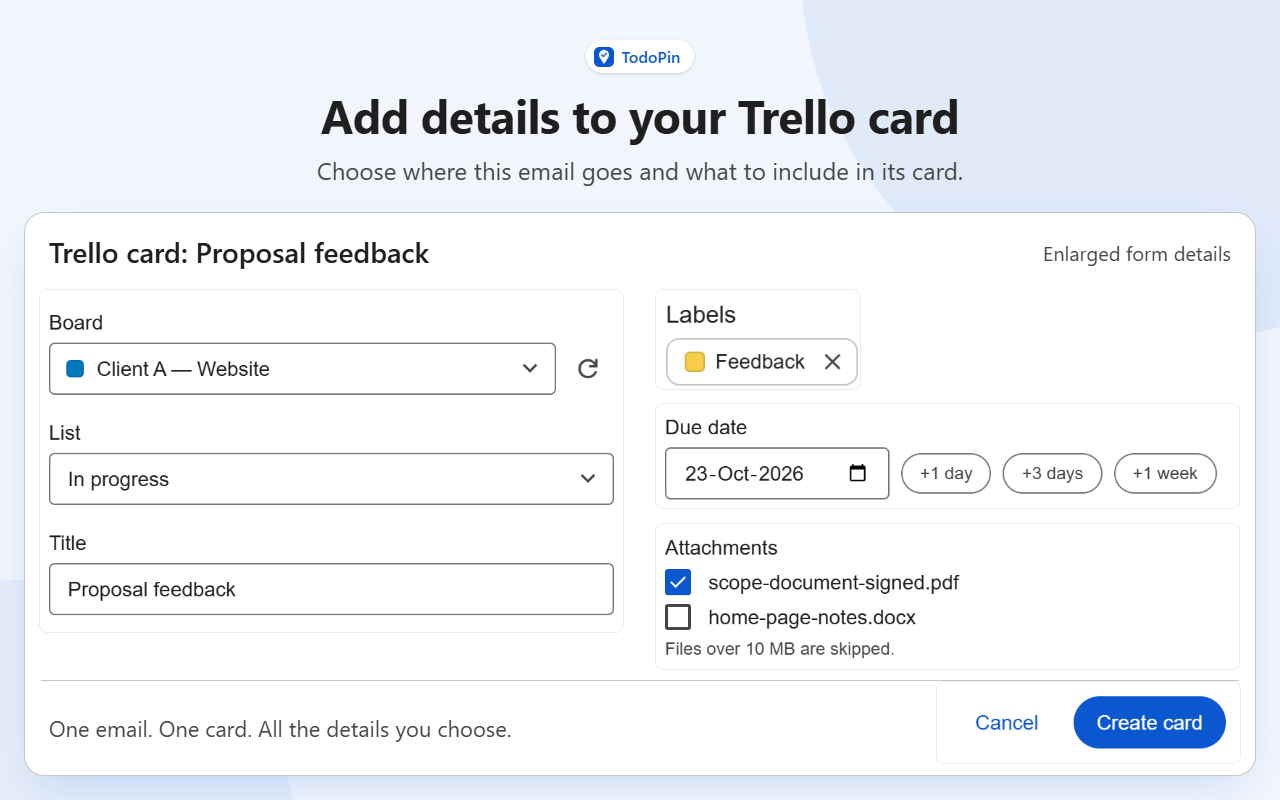
  • Need more control? Click the TodoPin icon in the browser toolbar and choose Create card from this email, or press Alt+Shift+T. In the form, pick a board and list, edit the title and text, and add labels, a member, a due date and the attachments to upload.
The panel of TodoPin's icon in the browser toolbar, with Create card from this email, Find existing card and Settings.

From the inbox list

Cards from the inbox list

Tick emails in your inbox and click TodoPin's button in the toolbar, or use the button on a single row. A popup lists the emails and lets you choose the board and list.

  • Emails that already have a card are left out.
  • Create up to 50 cards at once. Undo archives the cards already created and stops the rest.
  • Cards are created without the email text. Open the email later and choose Add email text.
Three selected emails in Gmail with their senders and full subjects. Below, a popup lists two emails to create as cards and one skipped because it already has a card, with board and list pickers and Create 2 cards.

Labels and notices

See where an email's card is

In the inbox list, an email that has a card carries a label with the board and the list, tinted with the board's colour.

  • Open the email and a notice under the subject names the card and offers Open card.
  • The TodoPin button then opens that card instead of making a second one.
  • If you move or archive the card in Trello, TodoPin checks for the change when you open the email, normally no more than once every 10 minutes.
Emails in the Gmail inbox list, two of them with a label in their board colour naming the board and the list. Below, an open email with a notice under its subject that names the card, with Open card and Add email text.

From web pages

A card from the page you are reading

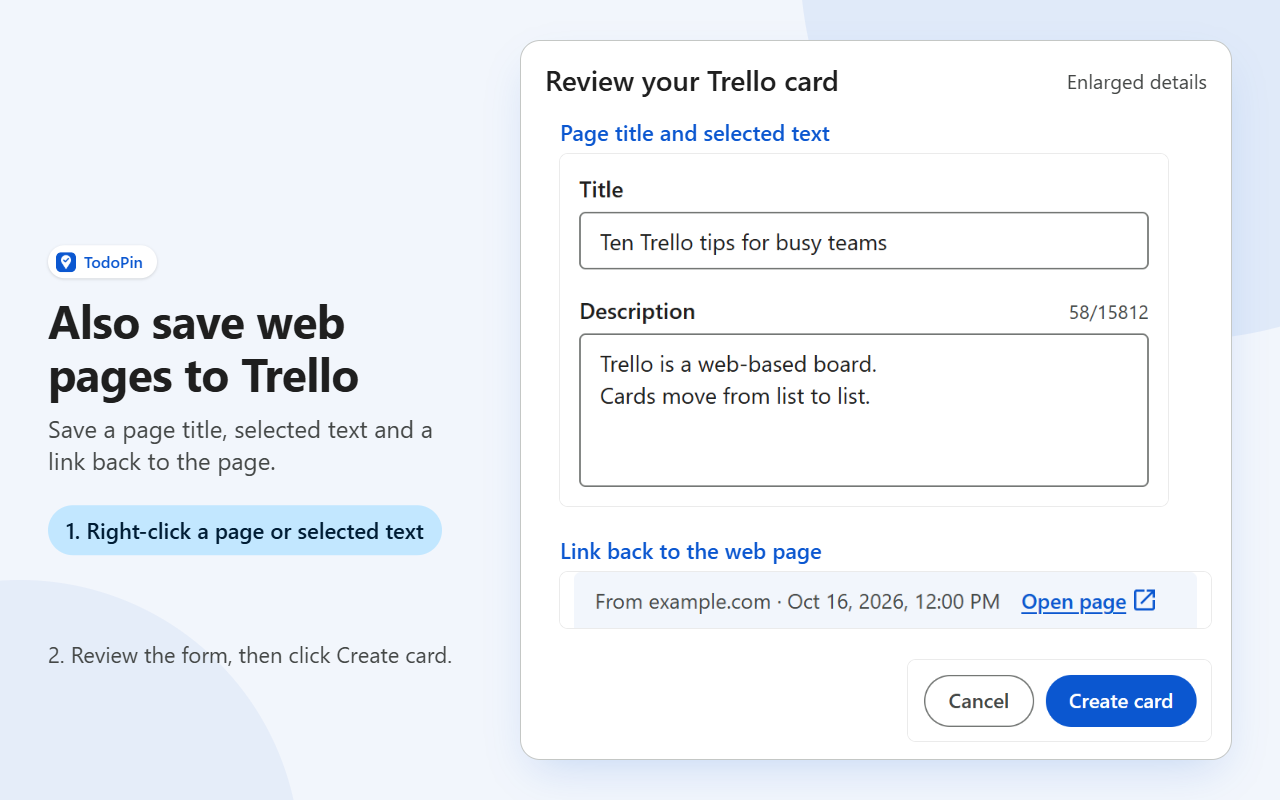
Use the TodoPin icon in the browser toolbar (Create card from this page), press Alt+Shift+T, or right-click the page or some selected text (Send page to Trello, Send selection to Trello).

  • The title is the page's title. The description is the text you selected, or else the page's own description. You can edit both before you create the card.
  • The card keeps an Open page link back to the page. If you selected text, the link can open the page with that text highlighted.
  • Already made a card for this page? Open it, choose Add to the card to post a comment, or choose Create a new card. If TodoPin has no record of it, choose Already made a card for this page? Find it.
  • The browser lets extensions read some pages only in part, and some not at all, such as its own pages. TodoPin then says so and, where it can, still fills in the title and the address.

How it works

  1. Connect Trello

    Open TodoPin's settings and choose Connect Trello. Sign in to Trello in the window that opens. TodoPin never sees your password.

  2. Pick a default board and list

    Choose where cards go by default, from Gmail and from web pages. You can pick another board and list for any single card.

  3. Create a card

    In Gmail, open an email and click the TodoPin button in its toolbar. On a web page, use the TodoPin icon in the browser toolbar, Alt+Shift+T or the right-click menu, then choose Create card. A message confirms the card, with a way to open it and Undo.

  • No server of its own

    There is no TodoPin server for your emails, or the pages you save, to pass through.

  • Only to Trello, only when you ask

    The content of an email or a web page leaves your browser only when you ask TodoPin to create a card or add text to one, and it goes only to Trello.

  • No analytics, no ads

    Email and page content is not sent to the developer or to any analytics, advertising or AI service.

Turn an email or web page into a Trello card

Works in Chrome and Firefox on desktop. A Trello account is required.